
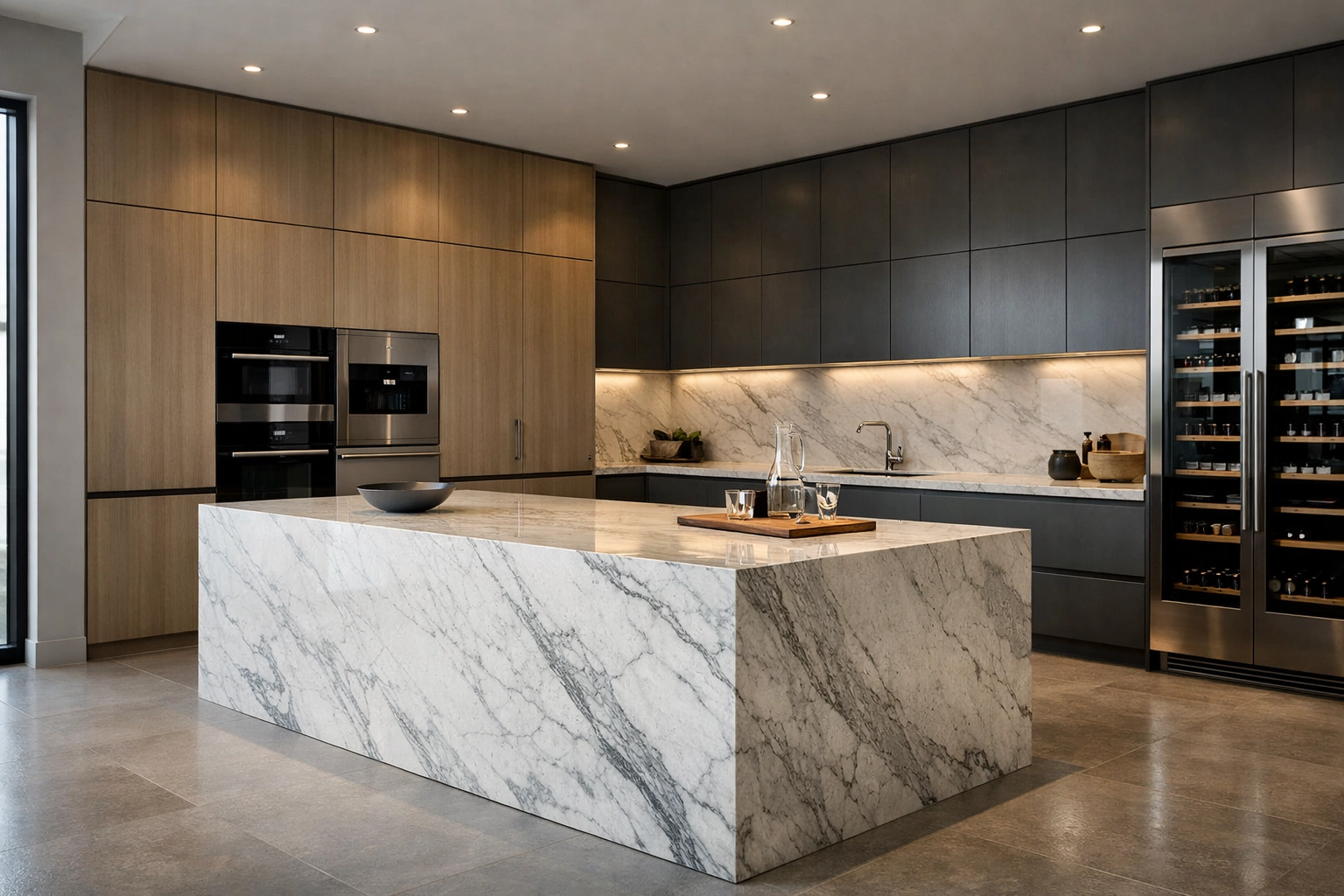
You’ve nailed your kitchen design in SketchUp-now you need a photoreal render for the showroom. Like… today.
The usual answer? Export, set up, render, tweak, render again. It depends-mostly on how much time you’ve got (and how much you enjoy watching loading bars).
The longer (and more useful) answer is below-export a JPG/PNG from SketchUp, upload it, get 4K/8K photorealism in ~60s with AI interior rendering that preserves your original geometry and needs no prompts.
Why 8K Resolution Actually Matters for Kitchen Rendering
Most designers assume 4K is “good enough” for presentations. It depends—on how clients view (and zoom) your visuals.
8K resolution (7680 × 4320 pixels) gives you four times the detail of 4K. In architectural visualization, that extra clarity is obvious in kitchens:
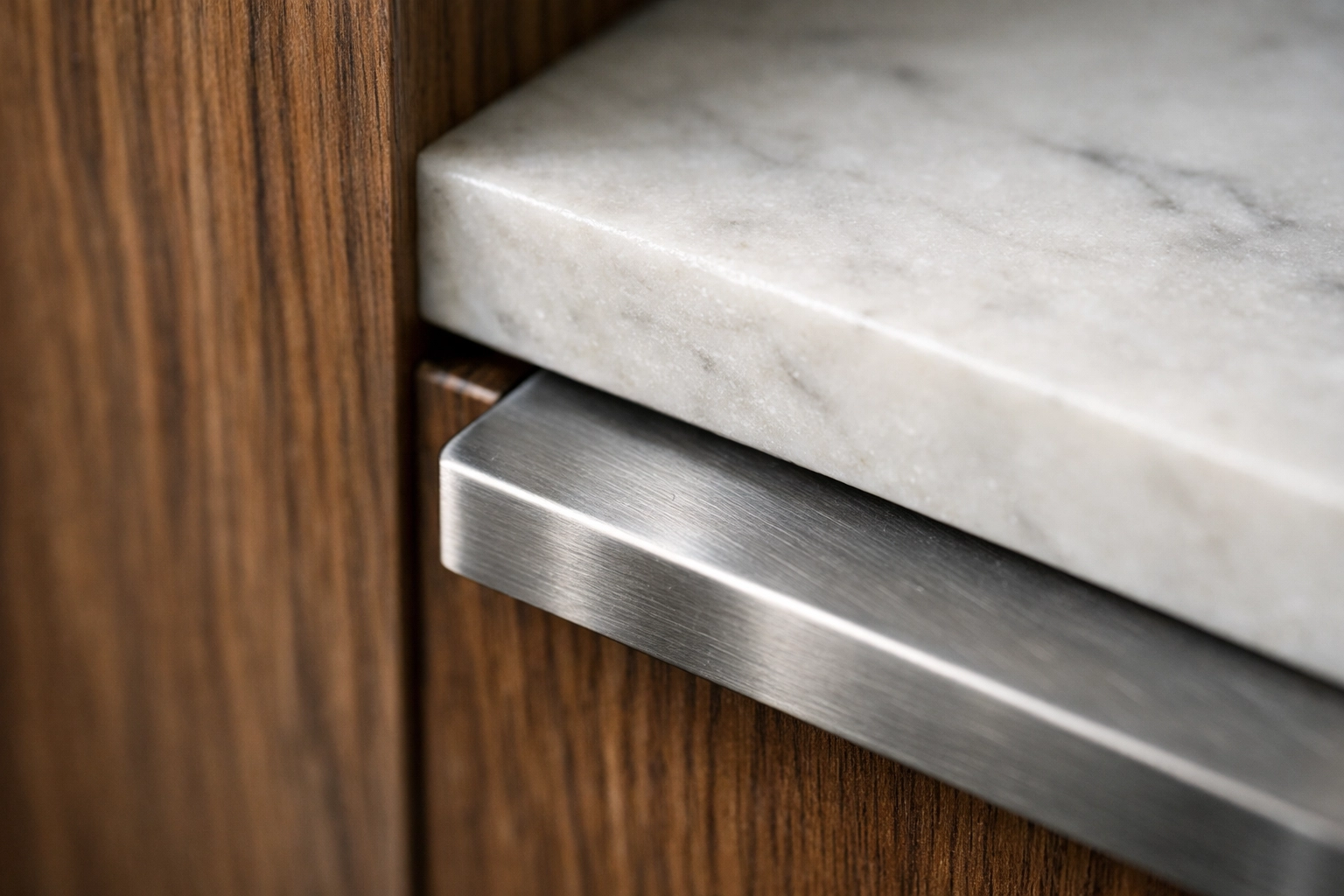
- Zooming in: Clients inspect worktop textures and wood grain without blur
- Metal details: Handles and appliances stay crisp, not pixelated
- Tiling realism: Grout lines and edge trims read correctly
- Showroom print: Boards and posters hold quality at 2+ metres wide
- Marketing crops: You can crop for socials without losing sharpness
The issue isn’t desire-it’s time. Traditional photorealistic rendering makes 8K output slow and hardware-heavy.
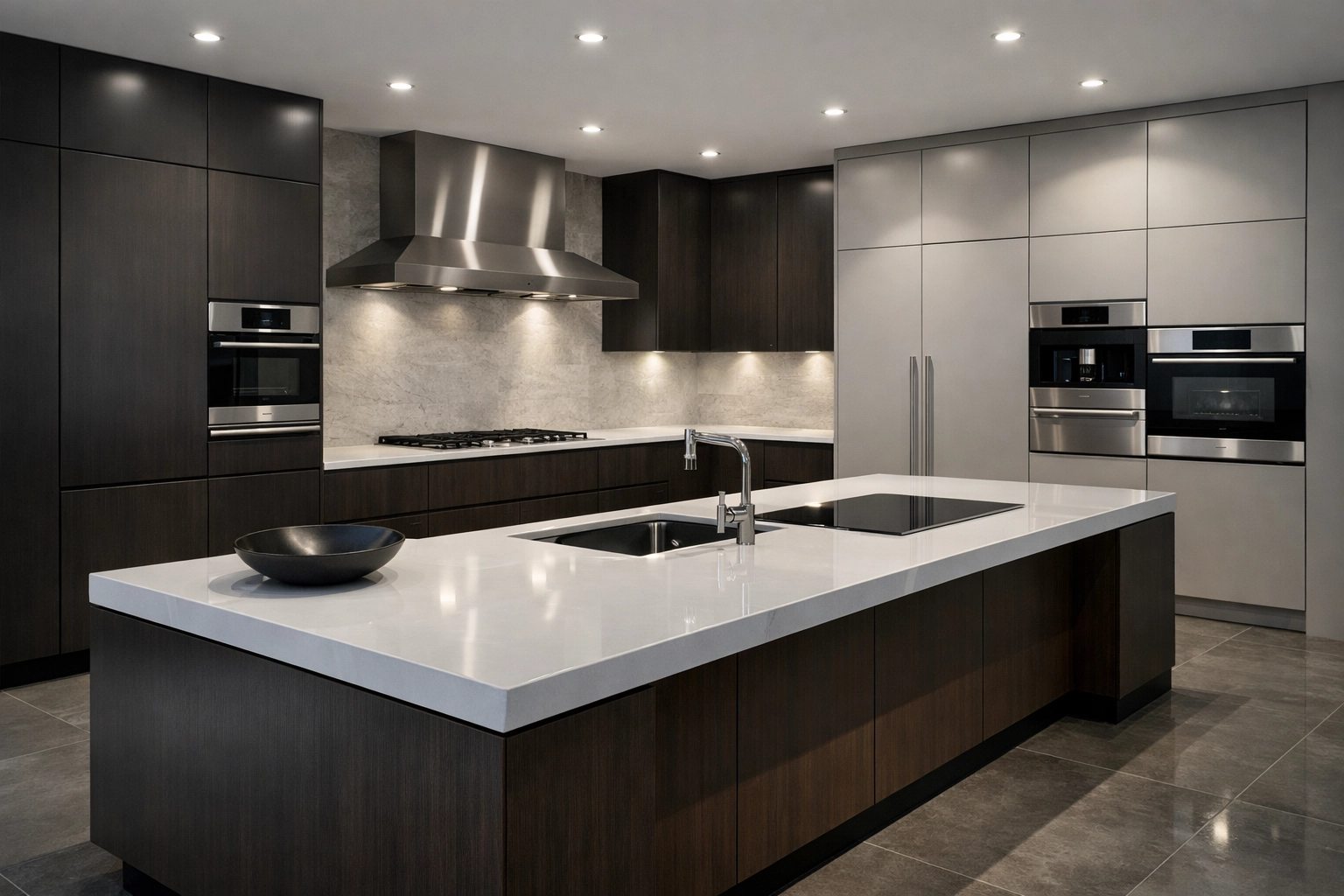
The Traditional SketchUp Rendering Bottleneck (And Why It Kills Turnaround)
Here’s what most kitchen designers run into when doing photorealistic rendering from SketchUp:
Option 1: Built-in SketchUp Styles/Exports
- Fast—but looks cartoonish with basic lighting
- Limited realism for reflections, metals, and glass
- Presentation risk: “Looks nice” becomes “Does it feel real?”
Option 2: Third-Party Render Plugins (V-Ray, Enscape, etc.)
- Photorealistic results—eventually
- 8K render times: often 2–6 hours per scene (hardware + settings dependent)
- Learning curve: new panels, new workflows, more troubleshooting
- Machine impact: GPU/CPU maxed (your computer is basically unusable)
- Ongoing cost: typically £400–800/year in licensing
Option 3: Outsource to a Studio
- High quality and consistent output
- Turnaround: often 3–7 days
- Cost: commonly £150–400 per image
- Revisions: add time (and usually add cost)
If your client needs visuals today, the bottleneck isn’t SketchUp—it’s the rendering workflow.
SketchUp Rendering in 60 Seconds: JPG In, 4K/8K Out
KBB Render is AI interior rendering built for KBB teams who want SketchUp rendering that’s fast, accurate, and actually looks installed (not “concept art-ish”).
The 3-Step Workflow (No Drama)
Step 1: Export from SketchUp
- Export a JPG or PNG (SketchUp: File → Export → 2D Graphic)
- Keep your view clean and straight (no weird fisheye angles)
- That’s it-no lighting rigs, no render settings rabbit hole
Step 2: Upload
- Upload your JPG/PNG to https://kbbrender.com/ai-interior-rendering-tools/
- Pick 4K or 8K output
Step 3: Generate
- Get a photorealistic render in ~60 seconds
- Keep your original geometry (your layout stays your layout)
- Use no prompts-because you’ve got kitchens to sell, not keywords to brainstorm
This means: you spend your time designing, and KBB Render handles the realism-materials, lighting, sharpness, the lot.
Why Speed Matters More Than You Think
Let’s do the maths on a typical kitchen project:
Traditional Rendering Workflow:
- Initial render: 3 hours
- Client wants the worktop changed: 3 hours
- Client prefers different cabinet handles: 3 hours
- Total: 9 hours (plus your time tweaking materials between each render)
KBB Render Workflow:
- Initial render: 90 seconds
- Worktop change: 90 seconds
- Handle change: 90 seconds
- Total: 4.5 minutes
You just freed up an entire workday. And because revisions are so fast, you can show clients multiple options without the anxiety of “I hope they like this one.”
Do You Need HDRIs or a High-Spec Machine?
Traditional rendering workflows often slow down at 8K because of heavy HDRIs, high-sample settings, and GPU/VRAM limits.
An 8K HDRI environment plus high-quality materials can balloon a project and push your machine into “fans screaming, everything frozen” territory.
KBB Render doesn’t require a high-spec machine because rendering happens in the cloud. You upload your SketchUp file, we handle the heavy lifting, and you download the finished image-meaning:
- MacBook (no dedicated GPU): fine
- Older PCs: fine
- Multiple projects at once: still workable
- On-site presenting: you’re not tied to a workstation
That’s why the SketchUp to 8K workflow stays simple: one click, cloud processing, client-ready output.
Perfect for Showrooms: When 4K/8K Actually Pays Off
Not every image needs 8K. But showrooms? Oh yes.
Use 8K For:
- Showroom displays: big screens, big prints, big expectations
- Zoom-ins: worktops, grain, trims, handles-no blur, no mush
- Crops: socials and brochures without losing sharpness
Use 4K For:
- Quick client options: fast approvals, fast decisions
- Email previews: still crisp, smaller file sizes
The advantage of KBB Render? 4K or 8K still lands in ~60 seconds. You pick what you need-when you need it.
Geometry Accuracy: The Hidden Advantage
Here’s something most designers don’t realize until they’ve tried generic AI rendering tools:
AI can “hallucinate” room geometry.
Feed a SketchUp file into a generic AI renderer, and you might get back a kitchen where:
- The peninsula has moved 30cm to the left
- Cabinet doors have multiplied
- Your carefully planned workspace triangle is ruined
This happens because generic AI image generators don’t understand CAD: they’re making educated guesses about what “a kitchen” should look like.
KBB Render preserves your original SketchUp geometry exactly. We’re not regenerating your room layout; we’re enhancing your existing design with photorealistic materials and lighting. Your measurements, proportions, and spatial relationships remain untouched.
For kitchen visualisation, this is non-negotiable. Your renders need to match what will actually be installed.
Native Batch Rendering: When You Need Six Images, Not One
Most designers don’t render one kitchen at a time. You’re managing multiple rooms, options, and client requests-often in the same day.
Traditional workflow:
- Queue Render A: hours
- Queue Render B: hours
- Queue Render C: hours
- Hope nothing crashes (or locks up your machine)
KBB Render workflow with native batch rendering:
- Upload files (or variations) A, B, C, D, E, F
- Generate them in parallel
- Download and send client options while the momentum is still there
This matters in real studio life because batch output keeps architectural visualization moving-especially when you’re presenting multiple kitchen rendering directions (worktop swaps, door styles, handle changes, lighting moods).
The Hardware Myth (And Why AI Rendering Software Changes the Equation)
You don’t need a £5,000 GPU workstation to produce 8K architectural visualization anymore.
You need clean geometry and the right AI rendering software. KBB Render runs in the cloud, which means:
- No high-spec machine needed: your laptop specs matter far less
- No installs: use it from any device
- No driver drama: no GPU updates or render-engine crashes
- No wasted nights: no “it failed at 98%” surprises
If your computer can run SketchUp reliably, it can handle the SketchUp to 8K workflow in KBB Render.
Getting Started: Your First SketchUp to 8K Render
Ready to try the one-click workflow?
- Open your SketchUp kitchen project
- Export a JPG or PNG (File → Export → 2D Graphic)
- Head to https://kbbrender.com/ai-interior-rendering-tools/
- Upload your JPG/PNG and select 8K output
- (Optional) Pick an Inspiration Transfer style to change the vibe without changing the layout
- Click Generate
About ~60 seconds later, you’ll have an 8K photorealistic render suitable for client presentation—without installing anything, without a high-end GPU, and without a long render queue.
If you want to see it in action first, book a demo at https://kbbrender.com/book-kbb-render-demo/.
Summarising: Speed vs Quality
For years, kitchen designers accepted a trade-off: fast SketchUp rendering looked a bit “game-y”, and photorealistic rendering took hours.
Now you can export a JPG/PNG from SketchUp, run AI interior rendering in the cloud, and get an 8K upscale in ~60 seconds. And with Inspiration Transfer, you can change the style (modern, classic, moody, bright) without changing your geometry-so your layout stays your layout.
The question isn’t whether you can go photoreal anymore. It’s whether you’re still spending your afternoons watching render buckets crawl across the screen.