
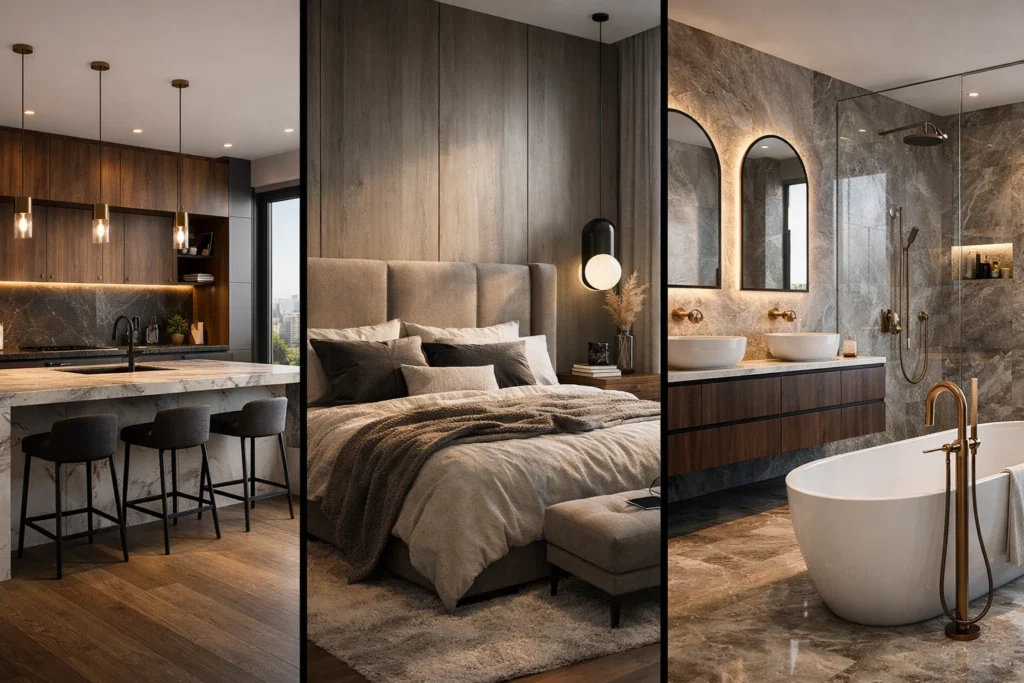
Are you tired of waiting hours: or even days: for a single photorealistic render to finish processing?
Does the traditional rendering workflow feel like a bottleneck in your design business?
It depends on how you value your time. If you prefer manual texture mapping and lighting adjustments that eat into your profit margins, the old way works. But if you want to close deals faster and present stunning visuals in minutes, there is a better way. The longer (and more useful) answer is below.
What Exactly is KBB Render?
Basically, KBB Render is an AI-powered visualization platform specifically built for the kitchen, bedroom, and bathroom industry. We designed this tool to help designers transform simple sketches, line drawings, or basic 3D exports into high-quality, photorealistic visuals.
We understand that in high-value projects, visual precision is not optional – it’s expected. Our engine allows you to bypass the technical “grunt work” of traditional rendering software, allowing you to focus on what you do best: designing.
Getting Started: The Supported Inputs
One of the most common questions we receive is: “What do I need to upload to get a good result?”
The short answer is: Clarity is king.
KBB Render supports a wide variety of base images, but the quality of your output is directly tied to the logic of your input. Supported formats include:
- Basic 3D Renders: Low-quality outputs from SketchUp or similar CAD tools.
- Architectural Line Drawings: Clean black and white exports that define the space.
- Hand-Drawn Sketches: As long as the perspective is clear.
- Space Layouts and Mood Boards: Used primarily for inspiration and structural guidance.
Following the above, we recommend using Line Drawings if you want the highest level of structural accuracy. A clean structure equals a cleaner output.
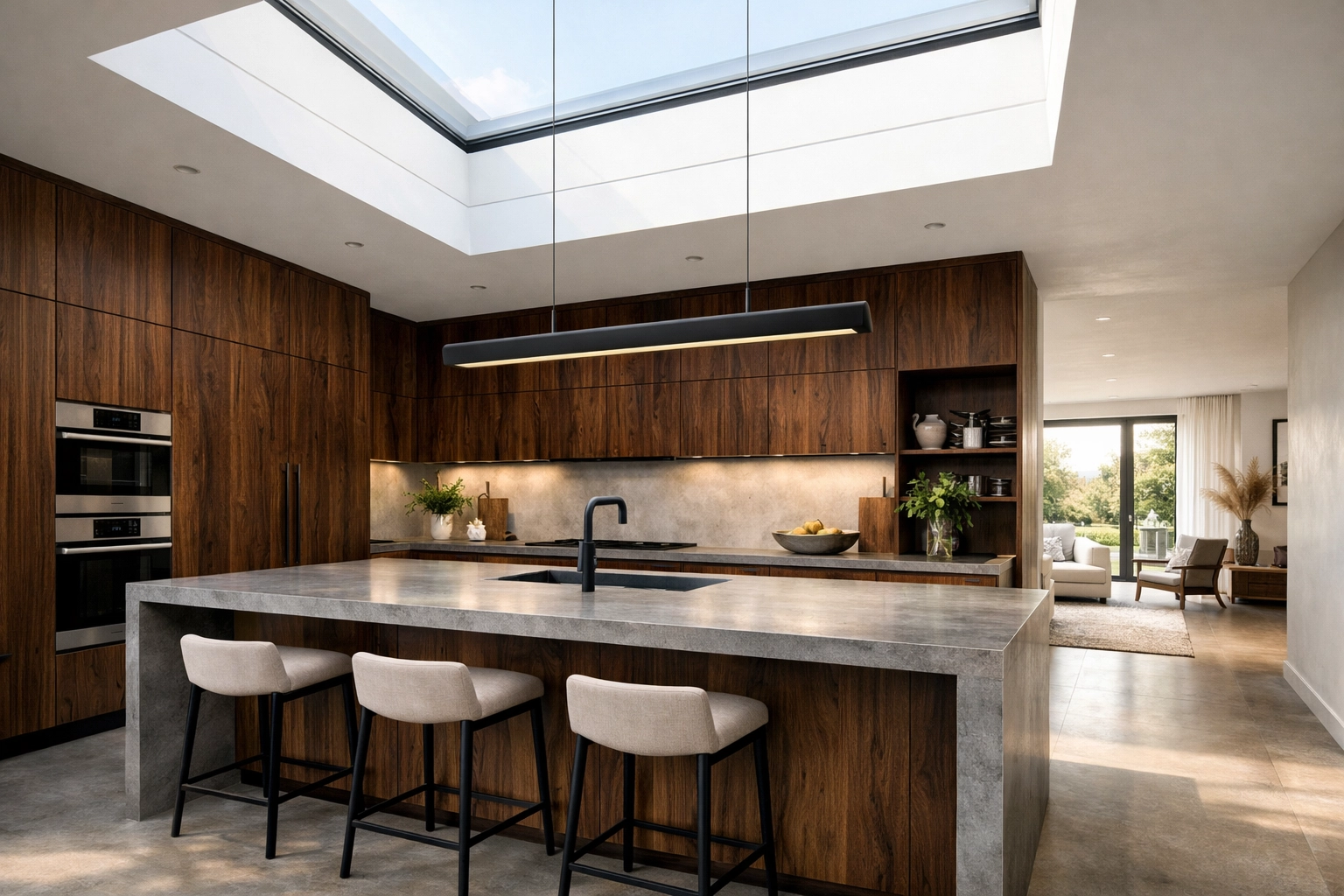
Understanding the Credit System
We keep our pricing transparent and simple. To manage your workflow effectively, you need to understand how the credit economy works within the app.
1 Render = 1 Credit.
<strong>1 Edit = 1 Credit.
<strong>1 Inspiration Transfer = 1 Credit.
This means:
- If you generate an initial render, that is one credit.
- If you then decide to change the cabinet colors via our editing tool, that is another credit.
- If you use our Batch Rendering feature to generate 6 variations at once, that will use 6 credits.
Bear in mind that credits do not roll over to the following month. Your balance renews every month based on your plan. If you find yourself running low during a busy project week, you can add 10 extra credits for just £1 in the top-up section. You can view our full pricing structure here.
Mastering the Core Tools: Precision vs. Creativity
KBB Render offers different “modes” depending on the stage of your design process. Choosing the right tool is the difference between a “nice” picture and a “sale-closing” visual.
Stable Precision
This is our flagship mode for designers who have a fixed layout. If your cabinetry and appliances must stay exactly where they are, Stable Precision ensures the AI respects your geometry while applying photorealistic textures and lighting.
Creative Realism
Use this when you want to give the AI a bit more “artistic flair.” It’s perfect for early-stage concepts where the client hasn’t committed to specific details yet. It produces beautiful, atmospheric results that feel lived-in.
Inspiration Transfer
This is perhaps the most powerful feature in our 2026 suite. You upload your clean line drawing (to retain the layout) and then upload a reference “inspiration” image. The engine then fuses the two: applying the style, mood, and material direction of the reference image to your specific floor plan.
The 4K vs. 8K Resolution Guide
When you are ready to download your masterpiece, you have two primary options. While it might be tempting to always go for the highest number, there is a strategic way to choose your resolution.
| Feature | 4K Resolution | 8K Resolution |
|---|---|---|
| Best For | Client Presentations & Emails | Social Media & Showroom Displays |
| Speed | Fast generation | Slower processing time |
| Detail | Natural & Realistic | Sharp & Hyper-detailed |
| Risk | Low distortion | Potential for texture artifacts |
This means: We recommend 4K for 90% of your daily workflow. It provides incredible realism without the risk of over-sharpening. Use 8K sparingly for marketing materials or large-scale physical prints in your showroom.

Lighting Modes: Making Logical Sense
Lighting changes perception dramatically. Within the app, you can choose from four primary modes:
- None: A neutral, balanced result.
- Day: Clean, bright presentation using natural light.
- Night: Focuses on artificial light sources like spots and pendants.
- Sunset: Adds a dramatic, warm HDR glow to the space.
Important Lighting Note: Sunset and Night modes work best when windows are clearly visible in your base image. Why? Because the AI needs a logical entry point for that dramatic light. If you have no windows but select “Sunset,” the AI might try to “force” a window into your design, which looks unrealistic.
Edit and Refine: The Professional Workflow
A common mistake new users make is trying to describe every single detail in the very first prompt box. Don’t do this.
The most successful users follow this professional workflow:
- Upload your base image and select your primary lighting.
- Generate the initial render to get the “bones” of the image right.
- Use the Editing Tool after the render is produced to make specific changes.
How to prompt for edits:
Keep it conversational and short. Separate changes with commas.
Example: “Change flooring to light oak, add LED strip lights under wall units, change island stools to black velvet.”
Doing all your edits in one go saves credits and maintains image resolution. Every time you edit an image multiple times, the resolution can slightly degrade. Aim for “one-shot” editing whenever possible.
AI Accuracy: A Disclaimer
KBB Render is a visualization and sales tool, not technical CAD software. While our outputs are visually stunning and accurate to your layout, minor details can sometimes shift. Dimensions are visually interpreted, not technically measured.
Always review your visuals before using them for technical production or manufacturing. Our goal is to help you sell the dream: your CAD software handles the measurement.
Exclusive Incentive: Get 50 Free Credits
We are currently offering an exclusive incentive for our early users to help grow our community.
Want 50 extra credits for free?
- Visit our Trustpilot page and write a review about your experience.
- Take a screenshot of your review.
- Ensure you are following us on Instagram and Facebook.
- Email the proof to info@kbbrender.com.
We will credit your account within 24 hours. You can do this twice (one month apart) for a total of 100 free renders!
What’s Coming Next?
The KBB Render engine is constantly evolving. While our current tools focus on high-end still imagery, our roadmap for the remainder of 2026 includes:
- Still Render to Animation: Turn your photorealistic images into cinematic fly-through videos.
- Add/Remove Objects: AI-powered scene cleanup to swap out appliances or remove clutter with a single click.
If you have a feature you’d love to see, reach out to us at our contact page. We build this platform for you.
Summarising the 101 Guide
Mastering KBB Render isn’t about becoming a “prompt engineer”: it’s about understanding the logic of the tool.
- Start with a clean base image (Line drawings are best).
- Choose the right mode (Stable Precision for layout, Creative Realism for vibe).
- Use Batch Rendering to save time on lighting variations.
- Edit after the render, not before.
- Leverage 4K for speed and 8K for high-end marketing.
Speed builds confidence, and confidence closes deals. The faster you can present clarity to your clients, the less time they spend looking at your competitors.
Ready to transform your first design? Book a demo or dive straight into the Knowledge Hub to see more tutorials.
The warning about Sunset mode inventing a window is a useful reminder that lighting and geometry need separate review. For an Inspiration Transfer comparison, I would keep the line drawing fixed and check cabinet count, appliance positions, window openings and island clearances before comparing the material mood. A simple checklist alongside the original CAD view would help prevent a convincing concept image from becoming an accidental specification. I represent EzImageAI, which supports browser-based image generation and reference-led editing; the connection is preparing early mood references, rather than validating dimensions. Your distinction between a sales visualization and technical CAD should stay visible throughout that handoff.