
Watch the KBB Render Onboarding Demo
Take your CAD designs further. Learn to render, edit colours and cabinetry, decorate spaces and prepare client-ready visuals without repeatedly returning to CAD.
- Render, edit & decorate
- Use the right starting image
- Create client-ready visuals
KBB Render onboarding demo: from CAD to client presentation
Guided by ClaraVideo placeholder. Add Clara's final recording URL to this Elementor section to display the playable tutorial here.
Why watch first? Learn how to render, edit and decorate your CAD designs without rebuilding the project for every small change.
Three Common Workflow Mistakes to Avoid.
Choose the right starting image and AI tool, then refine your project in KBB Render rather than restarting your CAD work for every change.
Starting with an unclear image
Blurred screenshots and heavily compressed exports can hide cabinetry, fittings and important edges. Use a clear CAD export or source image wherever possible.
Using a finished render with the wrong tool
A finished render is useful for AI Edit, decorating, Animation or Inspiration Transfer. For a new Sketch-to-Render generation, start with a clear CAD-style drawing or line sketch instead.
Going back to CAD for every small change
For changes to colours, finishes, furniture or lighting, try the relevant KBB Render editing workflow before rebuilding the CAD model. Always review the output for accuracy before presenting it.
Choose the Right Image for the Right AI Tool.
A blurry export can cause problems, and even a beautiful finished render may be the wrong starting point for a brand-new Sketch-to-Render pass. Match your source image to your goal.
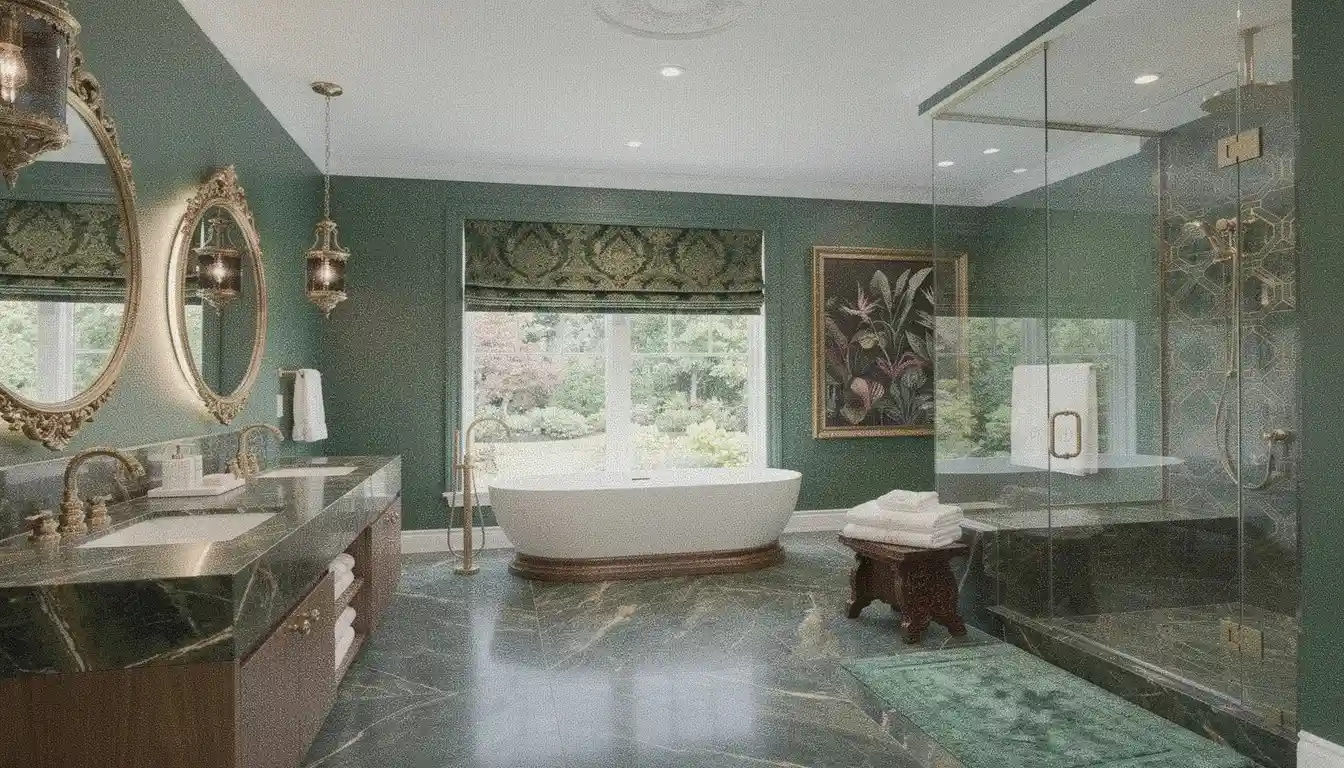 Check the image and tool
Blurred, compressed or already-rendered image
Blurry or compressed files can hide important design details. A finished photorealistic render is not automatically a bad input: use it for AI Edit, decoration, Animation or Inspiration Transfer. For Sketch to Render, a clean CAD-style sketch may be a more suitable starting point.
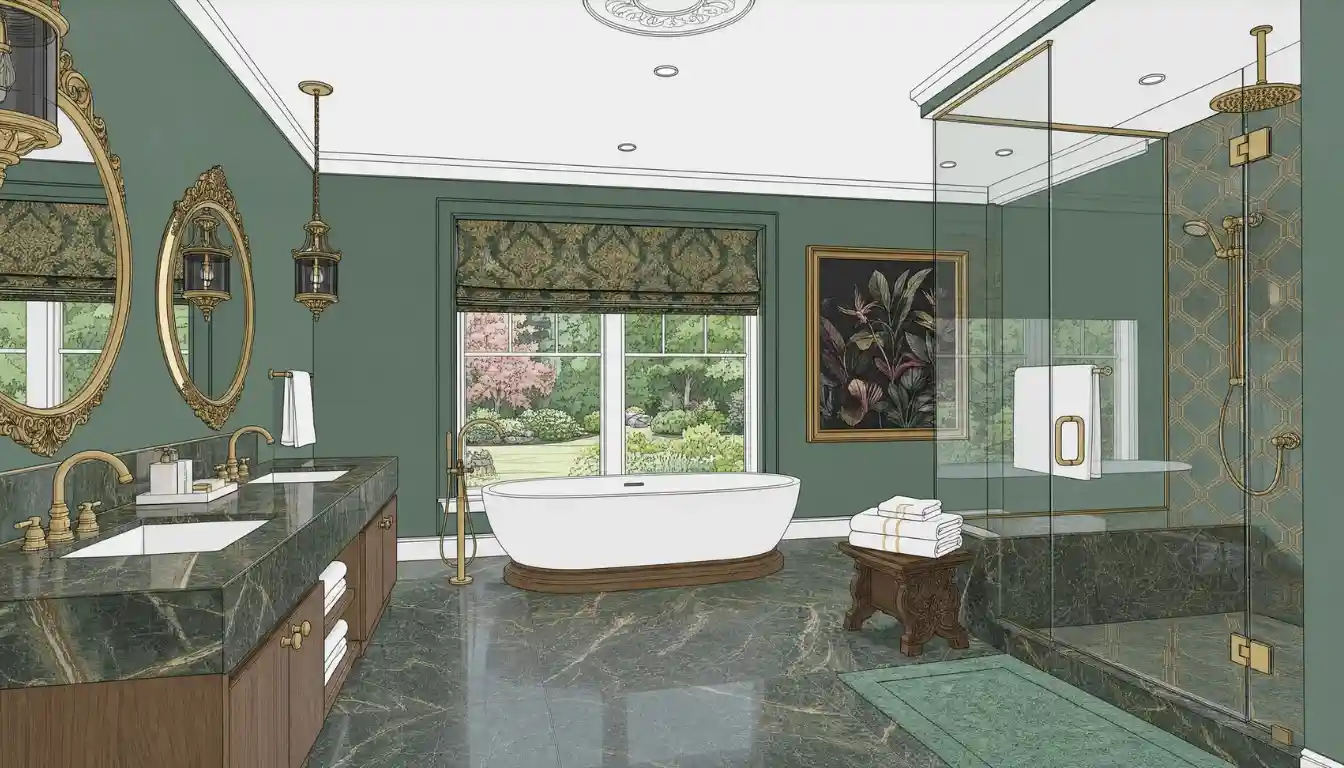 Suitable sketch-to-render input
Clear cartoon-style CAD drawing
A clean CAD-style input with legible cabinetry, surfaces and room layout is a useful starting point when you want to generate a new photorealistic image. For revising an existing polished render, switch to AI Edit instead.
These examples explain input suitability, not a guaranteed quality ranking. Finished renders can be excellent inputs for editing and animation; CAD-style sketches are often better for a fresh rendering pass.
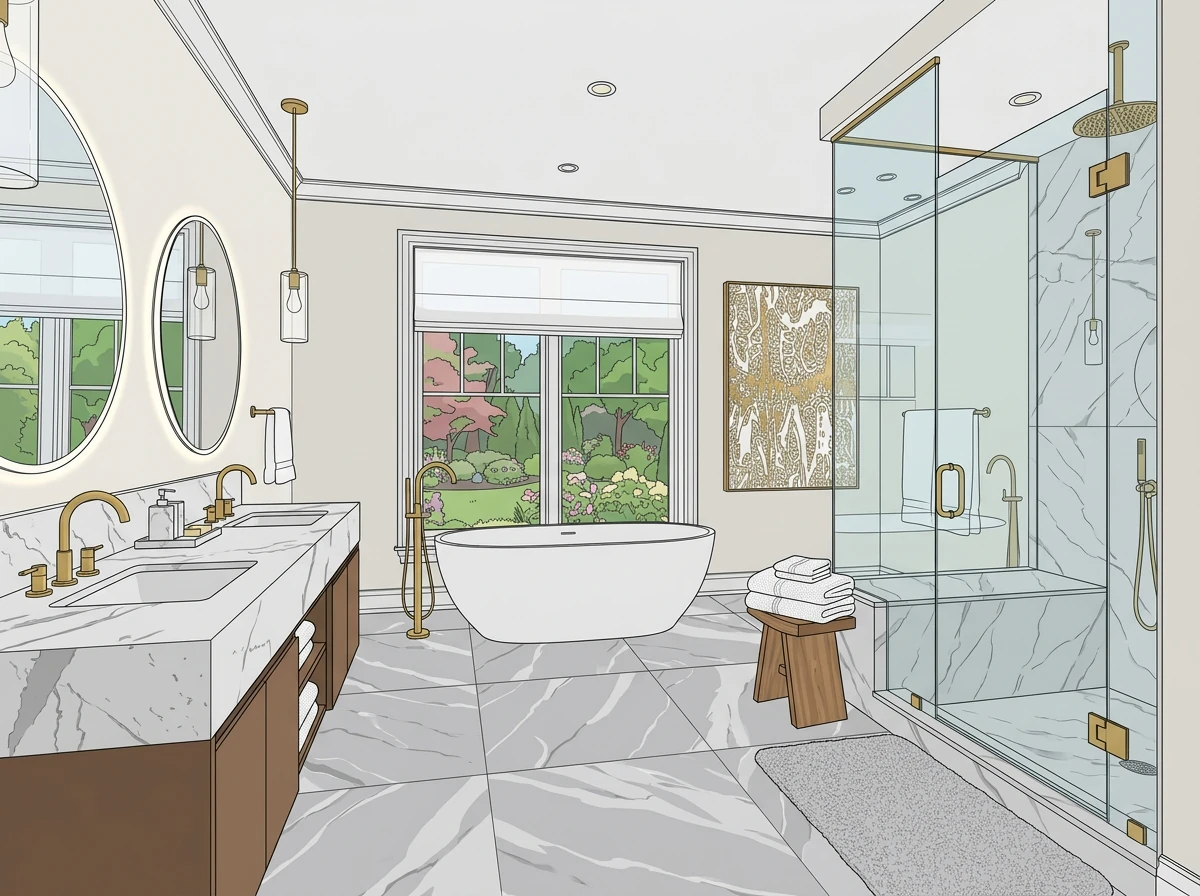
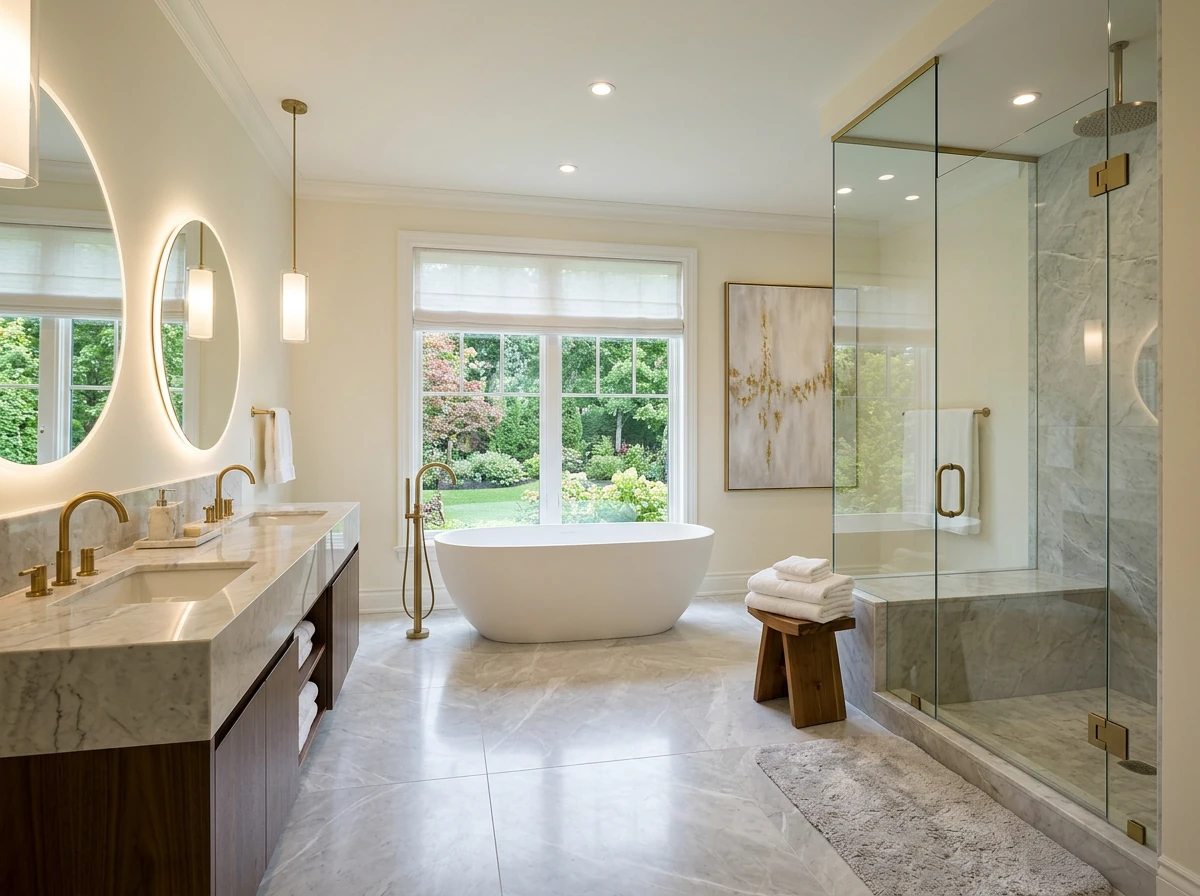
From cartoon-style CAD image to a realistic render.
For a new photorealistic visual, start with a clear CAD-style image and choose AI Render. Already have a finished render? Use AI Edit for client revisions without going back to CAD. Clara explains when each starting image makes sense.
Learn All Six KBB Render Tools.
Learn six connected workflows: render, edit, decorate, transfer styles, animate and create presentation documents without repeated CAD revisions.
AI Render
Transform CAD sketches and line drawings into photorealistic interior images. Learn rendering engines, lighting choices and batch generation.
Explore AI RenderAI Edit
Change colours, cabinetry, worktops, flooring, furniture and lighting in an existing render without going back to CAD.
Explore AI EditAI Animation
Turn a still interior render into a cinematic walkthrough for client presentations and project storytelling.
Explore AI AnimationInspiration Transfer
Apply style, colour and material ideas from a reference photo or moodboard to your design concept.
Explore Inspiration TransferConversion Tools
Turn a finished render or photo into a cartoon-style sketch or line drawing for a cleaner AI starting point.
Explore Conversion ToolsAI Schematics
Generate visual moodboards, concept analysis, close-ups, annotations and presentation-style technical documentation.
Explore AI SchematicsWhich KBB Render Tool Should You Use?
Match your image to your goal instead of treating every upload as a brand-new render.
| What you want to do | Suggested starting point | Tool or workflow |
|---|---|---|
| Turn a sketch into a realistic room | Clean cartoon-style CAD image or line drawing | AI Render / Sketch to Render |
| Change cabinets, lighting or finishes | Existing render with visible room details | AI Edit |
| Explore a reference mood or palette | Existing room image plus clear reference | Inspiration Transfer |
| Create a walkthrough from a still | Clear, reviewed interior render | AI Animation |
| Prepare a render for re-interpretation | Existing render or image you want to simplify | Conversion: Cartoon Sketch / Line Drawing |
| Create moodboards, concept boards or design documentation | A clear render with identifiable design features | AI Schematics Suite |
Turn a sketch into a realistic room
Clean cartoon-style CAD image or line drawing
AI Render / Sketch to Render
Change cabinets, lighting or finishes
Existing render with visible room details
AI Edit
Explore a reference mood or palette
Existing room image plus clear reference
Inspiration Transfer
Create a walkthrough from a still
Clear, reviewed interior render
AI Animation
Prepare a render for re-interpretation
Existing render or image you want to simplify
Conversion: Cartoon Sketch / Line Drawing
Create moodboards, concept boards or design documentation
A clear render with identifiable design features
AI Schematics Suite
Use the tutorial and current app guidance for exact settings and plan access. Explore KBB Render’s AI tools or compare current plans.
What Clara Will Walk You Through.
Use this as your viewing guide and as the structure for the recorded onboarding video.
Find the right AI tool
Understand the six workflows: AI Render, AI Edit, AI Animation, Inspiration Transfer, Conversion Tools and AI Schematics.
Upload the right source
Compare blurry exports, finished renders, clean sketches and CAD-style views.
Create your first AI render
Choose the relevant tool and follow the app's available generation options.
Edit your render without CAD
Change cabinetry, materials, furniture and lighting in AI Edit without rebuilding the CAD scene; review every update.
Review before presenting
Check room geometry, finishes and product details before using the image with clients.
Download and organise
Export the result according to your plan and keep useful project versions.
Your 30-Second Workflow Checklist.
These quick checks can save unnecessary retries. Complete them before uploading your next JPG or PNG to KBB Render.
0 of 6 checks completed
Already have a finished render? That's fine. Choose AI Edit, Inspiration Transfer or AI Animation instead of a fresh Sketch-to-Render workflow.
Onboarding Demo: Frequently Asked Questions.
Direct answers to the questions designers ask before their first AI rendering upload.
What should I watch before using KBB Render for the first time?
Watch Clara’s walkthrough to choose the right tool, prepare an image and review your result before exporting.
Can I upload an already photorealistic render to KBB Render?
Yes. Finished renders work well for AI Edit, Inspiration Transfer and Animation. Use a clear sketch for a fresh Sketch-to-Render result.
Why can a blurry upload produce a disappointing AI render?
Blur hides edges, fittings and materials. Use a clear export rather than a compressed screenshot, and review the result.
Should I use a cartoon sketch or architectural line drawing?
For Sketch to Render, start with a clear CAD-style sketch or line drawing. Conversion Tools can help prepare an existing image.
Can I use JPG or PNG images rather than a CAD project file?
Yes. Upload a clear JPG or PNG export showing the room, without menus or distracting overlays.
How do I keep the room layout accurate in an AI render?
Use a clear source and check doors, windows, cabinets and proportions in every generated image.
Can I change lighting and materials after generating a render?
Yes. Use lighting controls and AI Edit to adjust finishes or lighting without restarting the whole CAD project.
Does KBB Render offer help for showroom teams as well?
Yes. Showroom teams can book a live demo covering workflows, team access and onboarding.
Can I edit my finished render without going back to CAD?
Yes. AI Edit can update cabinets, worktops, colours, décor and lighting in an existing render. Check each result before presenting.
What are the six KBB Render tools covered in the onboarding guide?
The guide covers AI Render, AI Edit, AI Animation, Inspiration Transfer, Conversion Tools and AI Schematics.
Finish Your Next Design Without Starting Over.
Learn the complete workflow: start with the right input, edit and decorate without unnecessary CAD revisions, and prepare client-ready visuals. Need help for several colleagues? Book a separate live showroom team demo.